# Ramp
{% hint style="info" %}
### Before you connect
You must be an **admin** of your Ramp account to connect the integration.
{% endhint %}
### How to connect
You can connect Ramp from either of two places:
**From the** [**Accounts**](https://use.kick.co/accounts) **tab**
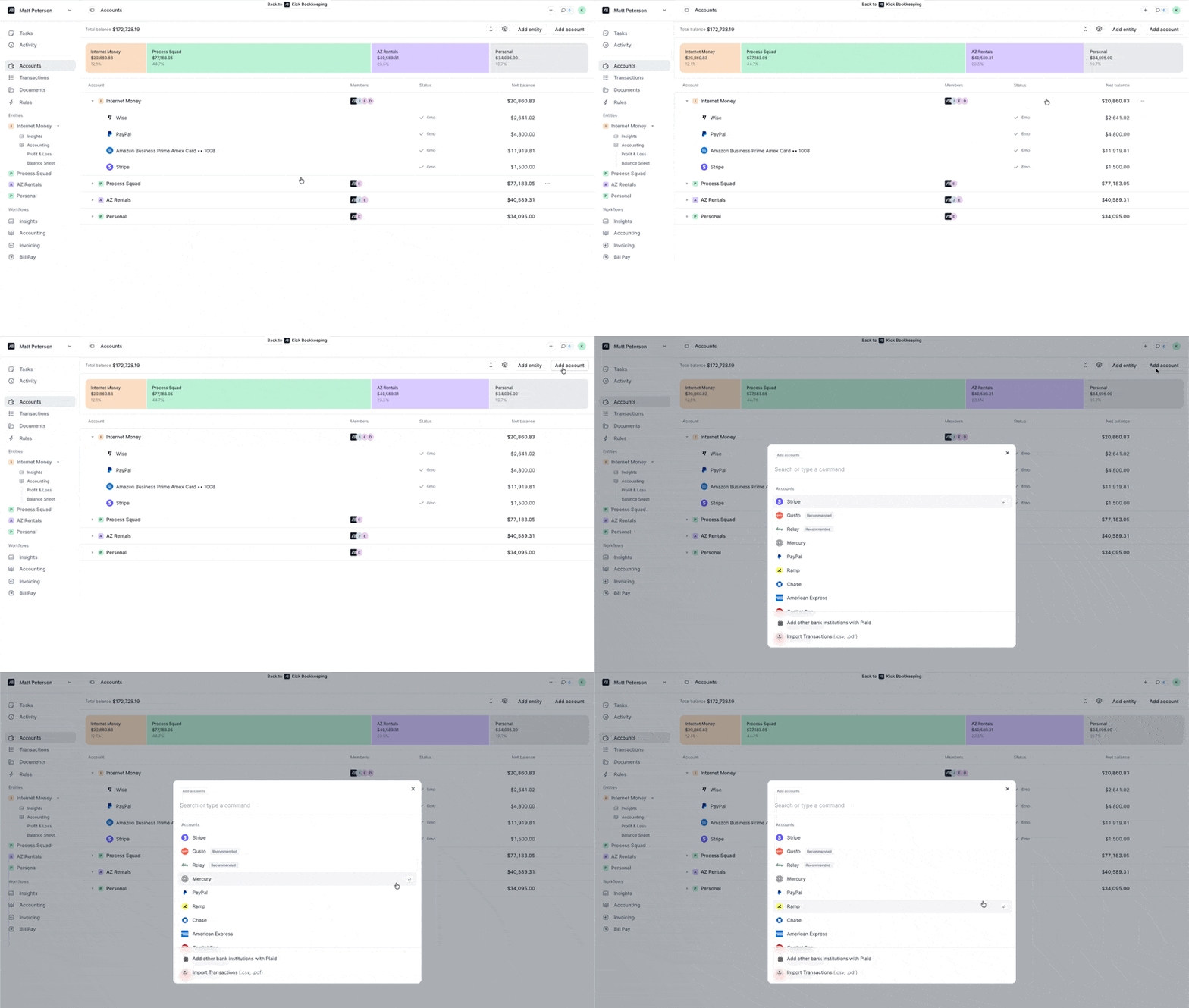
1. Navigate to the **Accounts** tab.
2. Click **Add account** in the top right.
3. Select **Ramp** from the dropdown, or search for it.
4. Follow the prompts to authenticate with your Ramp admin credentials.
**From the** [**Bill Pay**](https://use.kick.co/billing) **tab**
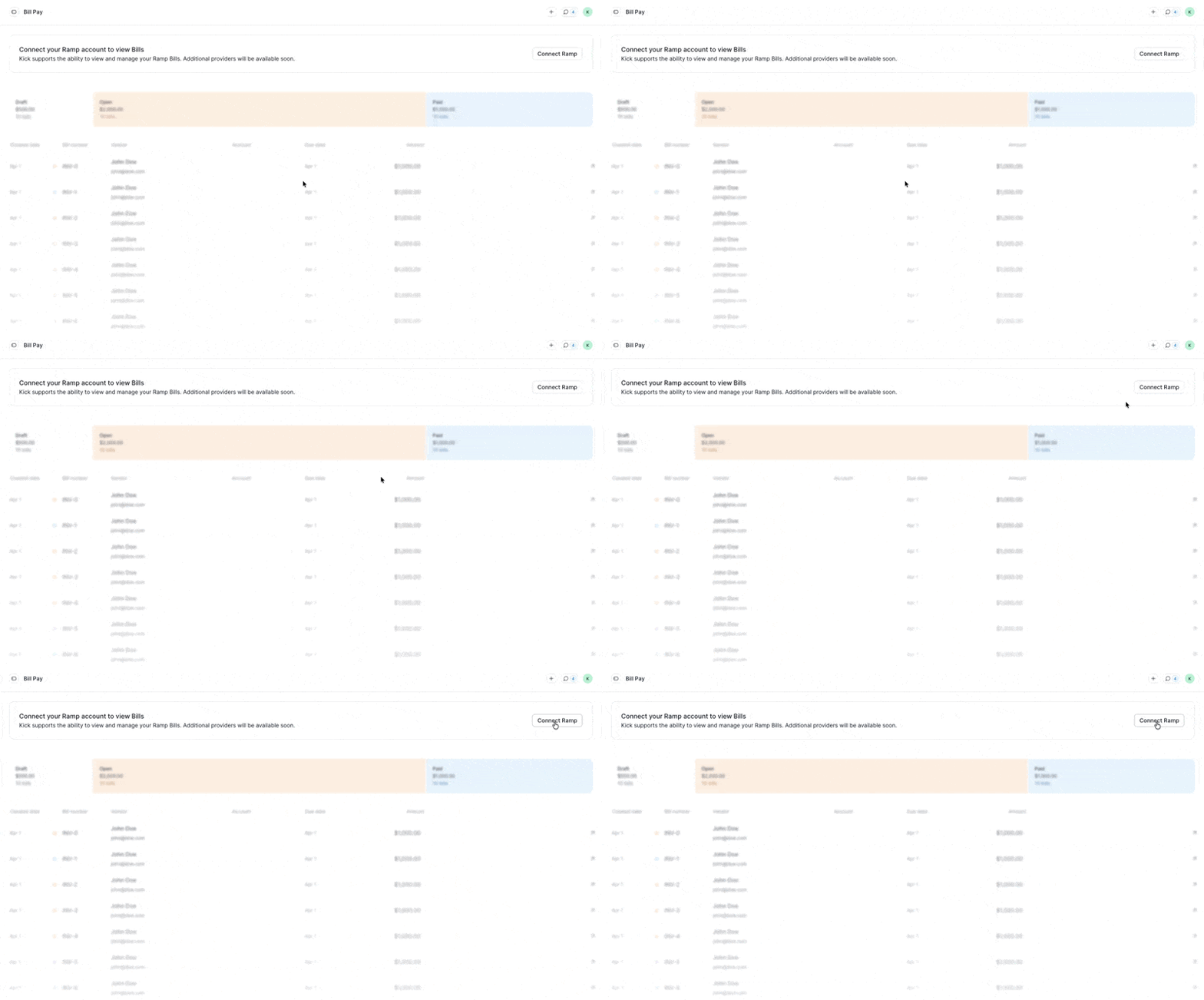
1. Navigate to the **Bill pay** tab.
2. Click **Connect Ramp**.
3. Follow the prompts to authenticate with your Ramp admin credentials.
Regardless of where you connect, all data types (credit card transactions, reimbursements, and bills) will sync.
***
### What syncs from Ramp
**Credit card transactions**
All Ramp virtual cards will appear as a **single credit card account** on your Balance Sheet. Credit card transactions sync on the Transactions tab and can be categorized and edited similar to transactions from any other integrated account.
**Reimbursements**
Reimbursements sync as a **separate account** under Other Current Liabilities on your Balance Sheet. When reimbursements are paid, they map to this liability account — so your Balance Sheet always reflects a live running balance of what is owed. Reimbursement-related transactions appear on the Transactions tab.
**Bills**
Bills from Ramp sync on the Bill Pay tab. For details on how Kick handles accounts payable reconciliation and bill pay insights, see [Bill Pay](https://accountants.kick.co/bookkeeping-workflows/bill-pay).
**Receipts**
All receipts from Ramp sync automatically and are matched to their corresponding expense transactions in Kick — no need to manage receipts in two places.
**Departments**
If you use departments in Ramp, they will automatically sync as Classes in Kick.
{% hint style="info" icon="arrow-right" %}
**Coming soon**
Support for Ramp's banking and treasury products is planned for Q2 2026. Stay tuned for updates.
{% endhint %}